
Best for long lists
Use video when the address list is longer than a few screenshots or when the app scrolls smoothly.
When your delivery list is too long for screenshots, record a slow scroll. NaviBatch can turn visible order numbers and addresses into reviewable groups for confirmed Apple Maps handoff; supplied real-device footage also shows Google Maps handoff in a tested build.
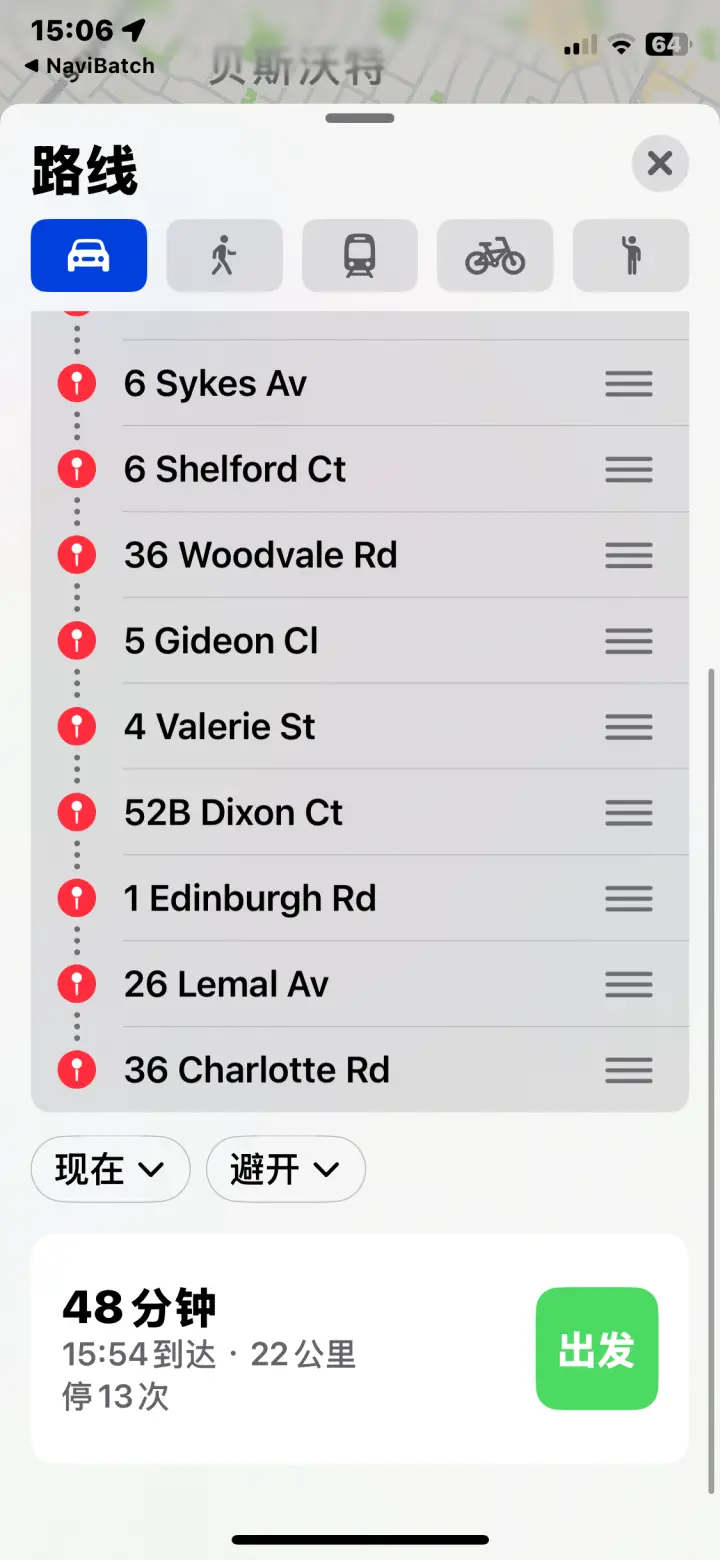
Some courier apps show many stops in one scrolling list. Taking dozens of screenshots can be slow, and a single long screenshot may not capture every row cleanly. A screen recording can preserve the list if the scroll is steady and the text stays readable.
NaviBatch uses that recording as a source for address import. The goal is to convert visible delivery rows into a reviewable address list, not to skip human checking. Drivers should always confirm the recognized addresses before route handoff.
Use video when the address list is longer than a few screenshots or when the app scrolls smoothly.
Keep the order number and address visible together long enough for reliable recognition.
Video import can save time, but the driver should confirm all addresses before using them.
Show the delivery order number and full address in the same row or screen area.
Move the bottom row upward until it becomes the top row, then repeat.
Fast playback, motion blur, and covered text can reduce recognition quality.
Upload the video, then verify addresses before route grouping and map handoff.
The strongest workflow is not just recognition. It is the full path from a recorded delivery list to a route: record, import, review, group, and send the next reviewed address group to Apple Maps. Google Maps remains version-dependent until the exact released build is verified.
Video import can capture long delivery lists, but video frames can still include blur, covered text, and rows that move too quickly. NaviBatch keeps the review step in the workflow so drivers can confirm the address list before route grouping and map handoff.
Rows that pass too quickly should be checked against the original delivery list before routing.
Confirm that the order number still matches the address after import, especially for dense apartment routes.
Use the reviewed list to create the next map-ready group instead of sending unverified addresses.
It can help when screenshots are too many or too awkward, but clear screenshots are still useful for shorter lists.
Recognition needs readable frames. Slow scrolling keeps the address and order number visible long enough to extract them.
Video import creates a reviewed address list. Apple Maps handoff is confirmed in the current release; a supplied real-device recording also shows Google Maps handoff in a tested build, with current availability dependent on the installed version.
Review recognized addresses, order numbers, apartment details, duplicates, and any row affected by blur or fast scrolling before route grouping.
Try NaviBatch video import for long delivery lists on iPhone.
Download NaviBatch