
Less retyping
Use screenshots and photos as input instead of typing every destination into a map app.
NaviBatch helps iPhone drivers import addresses from screenshots, long images, and photos, review the detected addresses, group them, and build a route without retyping every address.
Delivery drivers often receive addresses inside courier apps, dispatch screenshots, route manifests, text messages, or customer notes. Those addresses are visible on the phone, but they still need to become usable route-ready address groups.
Manually copying every address takes time and introduces mistakes. Screenshot address import gives drivers a faster starting point: upload the screenshots, let NaviBatch detect the addresses, then review and correct the results before planning the route.
Use screenshots and photos as input instead of typing every destination into a map app.
Detected addresses can be checked and corrected before they become stops in the route.
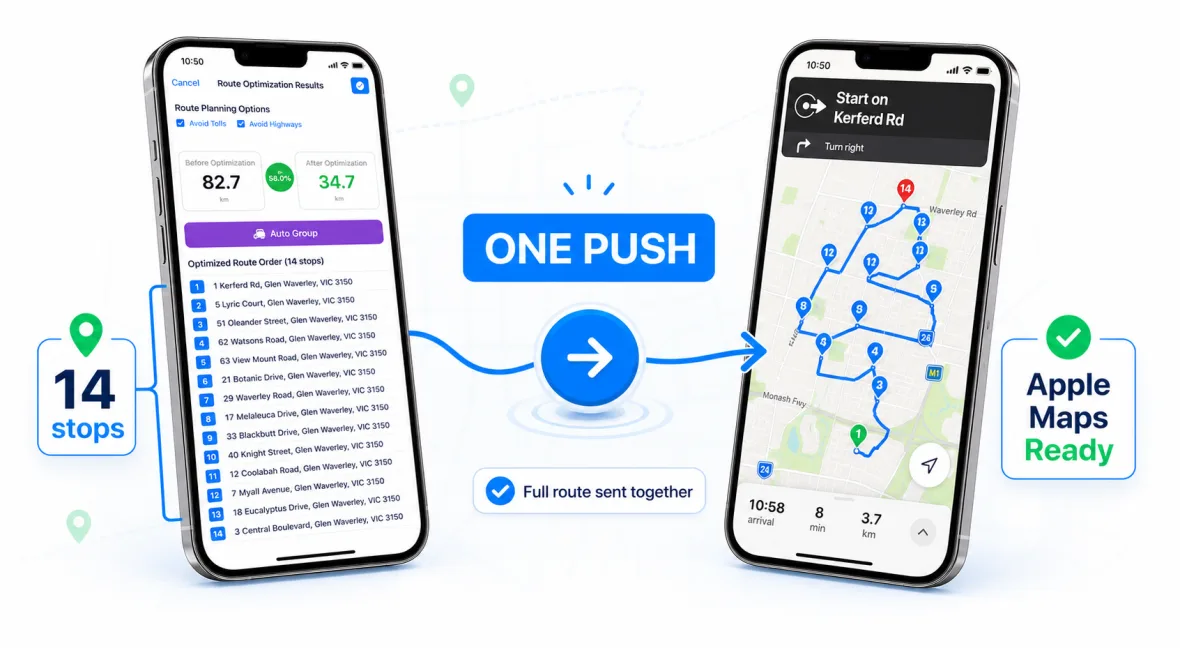
Import the address list, organize delivery addresses, then send the planned group to Apple Maps. Supplied real-device footage also records Google Maps handoff in a tested build.
Add one or more delivery screenshots from your iPhone photo library.
NaviBatch extracts address candidates and prepares them for review.
Remove duplicates, fix incorrect text, and keep the stops that belong to the run.
Use the cleaned address list for route setup and map handoff.
For best results, use screenshots where the delivery number and address text are visible, not blurred, and not covered by floating buttons or dark overlays. If a long list is split across multiple screenshots, keep enough overlap so the app can preserve context.
NaviBatch is designed for real delivery input, including messy screenshots. The important part is that the driver still gets a review step before using the addresses in a route.
Screenshot import is most useful when it reduces typing without removing driver control. After import, review anything that could change the actual destination: apartment numbers, unit details, cropped rows, duplicate addresses, and rows where OCR may have confused a street name or number.
Unit numbers can be easy to miss in screenshots. Keep them visible before the route is handed to navigation.
Long screenshots sometimes repeat rows or cut off text. Review the address list before grouping.
If an address looks unusual, check it before any map handoff.
Yes. NaviBatch supports long image workflows when the delivery order numbers and addresses remain visible and readable.
Yes. NaviBatch supports image-based address recognition workflows for screenshots and photos.
Yes. A review step is important because screenshots can contain abbreviations, partial text, or visual noise.
Screenshot import creates a reviewed address list. Apple Maps handoff is confirmed in the current release; a supplied real-device recording also shows Google Maps handoff in a tested build, with current availability dependent on the installed version.
Check apartment or unit numbers, cropped rows, duplicate stops, OCR-sensitive abbreviations, and anything that looks different from the original screenshot.
Use NaviBatch to turn screenshots into map-ready address groups and prepare your next delivery run faster.
Download NaviBatch