
Batch input first
Start from screenshots, videos, files, pasted text, or manual entry instead of one address at a time.
NaviBatch helps iPhone drivers import delivery addresses from lists, screenshots, long images, and videos, then review the route order, build Apple Maps-sized groups, and open the confirmed group for navigation.
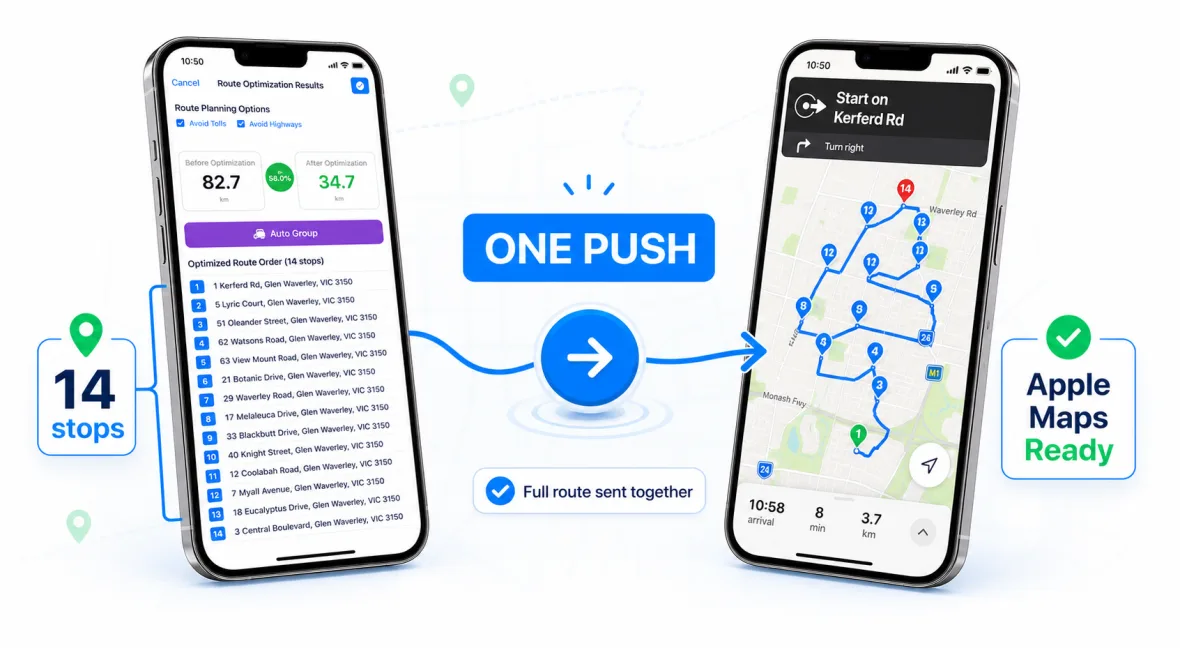
Many iPhone drivers prefer Apple Maps for turn-by-turn navigation, but the setup work can become repetitive when a route has many stops. You may need to copy addresses, add stops, reorder the route, and double-check the list before you start moving.
NaviBatch is designed to sit before Apple Maps in the workflow. It helps you collect the stops, clean the list, and prepare the run so Apple Maps can do what it does best: guide you on the road. The one-push handoff is patent pending and designed for real delivery routes, not generic trip planning.
Apple's iPhone User Guide documents that Apple Maps can add up to 14 stops along a multi-stop driving route. NaviBatch uses that documented behavior as the practical size for reviewed Apple Maps handoff groups.
Start from screenshots, videos, files, pasted text, or manual entry instead of one address at a time.
Review the stop order and groups before handing the route to navigation.
Send the planned run to Apple Maps once the delivery route is ready.
Add the delivery list from images, video frames, files, paste, or manual input.
Fix any address recognition issues before the route goes to navigation.
Optimize the full route, preserve the imported order, or optimize only within a selected group before handoff.
Open the planned route in Apple Maps and start the drive.
NaviBatch treats route order and map handoff as different decisions. Sending a group to Apple Maps does not automatically choose the route order. The driver reviews the list, selects the appropriate optimization scope, then hands the confirmed group to Apple Maps.
Use full-route optimization for a normal address list when no company-provided delivery sequence needs to be preserved.
For a last-mile route loaded around existing stop numbers, keep the overall sequence and optimize only inside the selected group.
After the route order is confirmed, send up to 14 reviewed stops to Apple Maps. Apple Maps then handles navigation.
The important point is not only the number. The real driver problem is preparing a clean group before navigation: addresses should be readable, apartment details should be checked, duplicates should be removed, and the group should be small enough for Apple Maps handoff.
NaviBatch is built around this Apple Maps-sized workflow, so drivers can review one group, send it to Apple Maps, finish that segment, then move to the next group when needed.
This workflow is useful for delivery drivers, couriers, gig workers, and small logistics teams who already use an iPhone on the road. If the stop list changes often or arrives as screenshots from another system, NaviBatch can reduce the setup friction before navigation.
It is also useful when the route needs to stay understandable. Instead of only relying on the map, you can keep the delivery list, order, package context, and route handoff workflow close together.
Yes. Apple's iPhone User Guide says Apple Maps can add up to 14 stops along a multi-stop driving route. NaviBatch prepares reviewed Apple Maps-sized groups and can send up to 14 planned stops in one action.
No. The handoff only sends the reviewed group. NaviBatch route optimization happens before handoff, and the driver chooses whether to optimize the full route or only within a selected group.
Yes. For a normal address list without a fixed sequence, NaviBatch can optimize all reviewed stops before groups are sent to Apple Maps.
Keep the existing overall stop sequence, split it into groups, and optionally optimize only the addresses inside the selected group. This avoids globally rearranging a loading plan built around company-provided stop numbers.
No. NaviBatch prepares the addresses, optional optimization, route order, and group handoff. Apple Maps handles turn-by-turn navigation.
Yes. NaviBatch can import visible delivery addresses and stop numbers from user-provided screenshots, then lets the driver review them before routing.
Prepare the route in NaviBatch, then start navigation in Apple Maps when the run is ready.
Download NaviBatch