Built around phone input
Use the content already on your iPhone instead of rebuilding the route manually from scratch.
NaviBatch is built for drivers who receive delivery lists as screenshots, long images, videos, files, or copied text. Import the addresses, check the run, then send up to 14 stops to Apple Maps in one push.
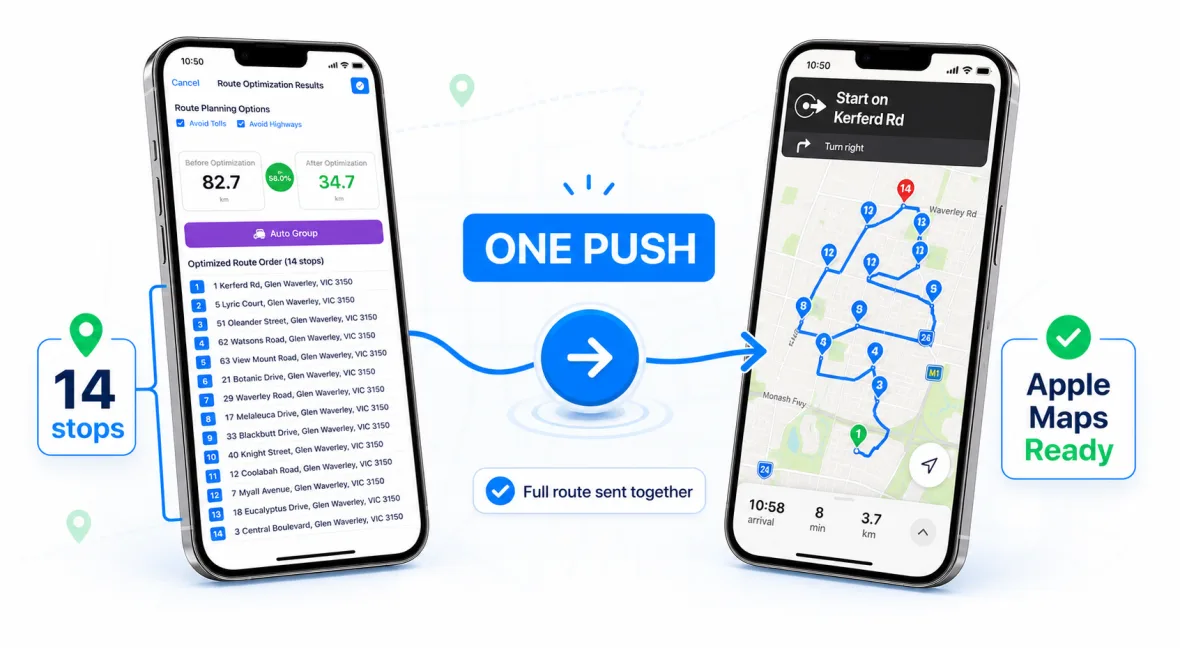
NaviBatch is a route planner app for iPhone built for delivery work. It turns the stop list already on your phone into a reviewed route, splits a long run into map-sized groups, and opens each group in Apple Maps with one push instead of adding stops one at a time.
Many route planning tools are made for desktop dispatch teams or generic trip planning. Delivery drivers usually need something different: a fast way to turn the information already on their phone into a clean route. NaviBatch focuses on that daily workflow.
If your stop list arrives as screenshots, courier app lists, customer messages, a long image, or a screen recording, the slow part is usually not driving. It is copying addresses, correcting them, checking the sequence, and repeating the same Apple Maps actions. NaviBatch reduces that setup work so the route can start sooner.
Use the content already on your iPhone instead of rebuilding the route manually from scratch.
Keep stop order, route groups, package context, and delivery workflow details close to the map workflow.
Prepare the run in NaviBatch, then hand planned stops to Apple Maps when it is time to navigate.
Add screenshots, a long image, a video of the scrolling list, a PDF or other file, pasted text, or manual addresses.
Check recognized addresses, stop numbers and map pins. A location check and a missing-stop check point to rows that need a second look.
Optimize a flexible list as one route, or keep the company sequence and split the run into groups sized for a map handoff.
Send one group of up to 14 planned stops to Apple Maps in one push. When it is done, send the next group.
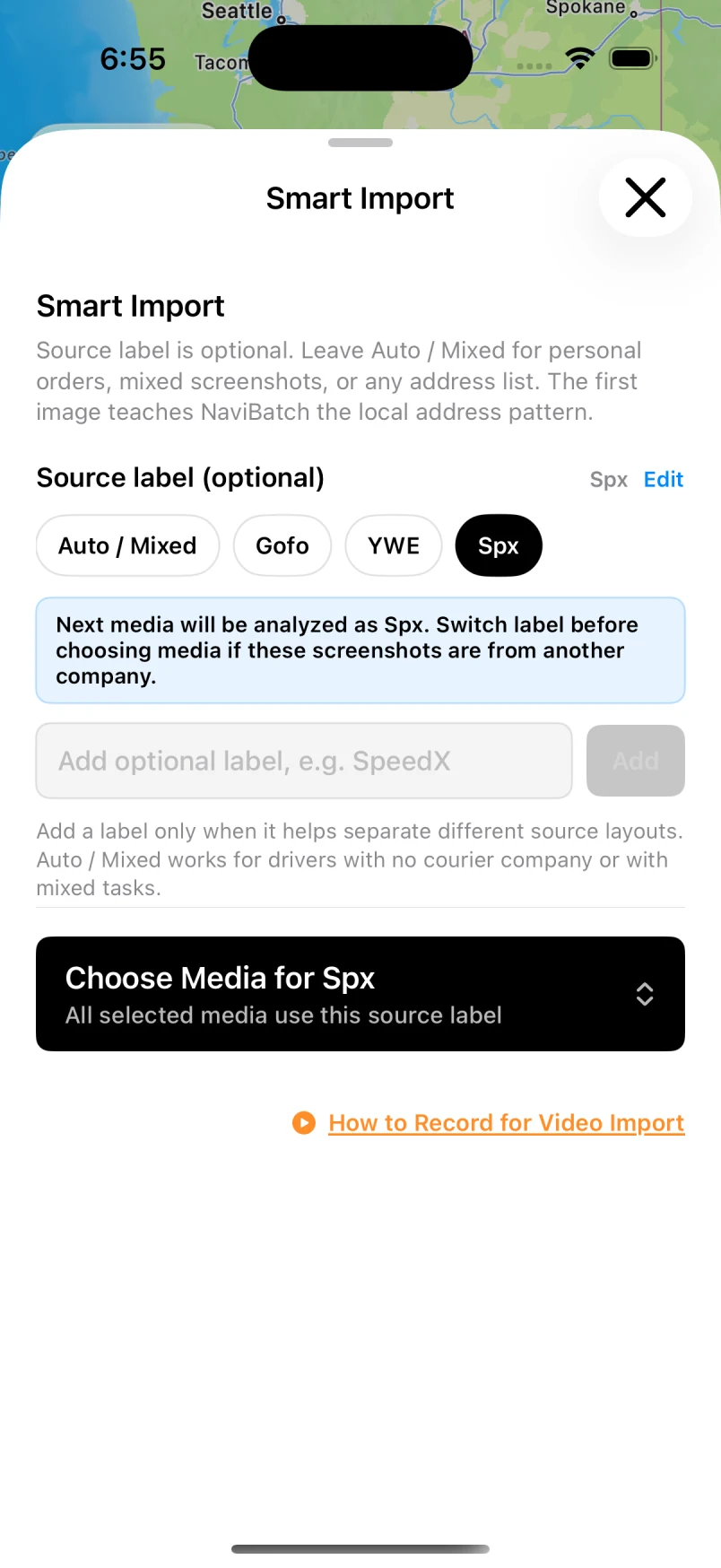
Import options for screenshots, video, files and pasted text.
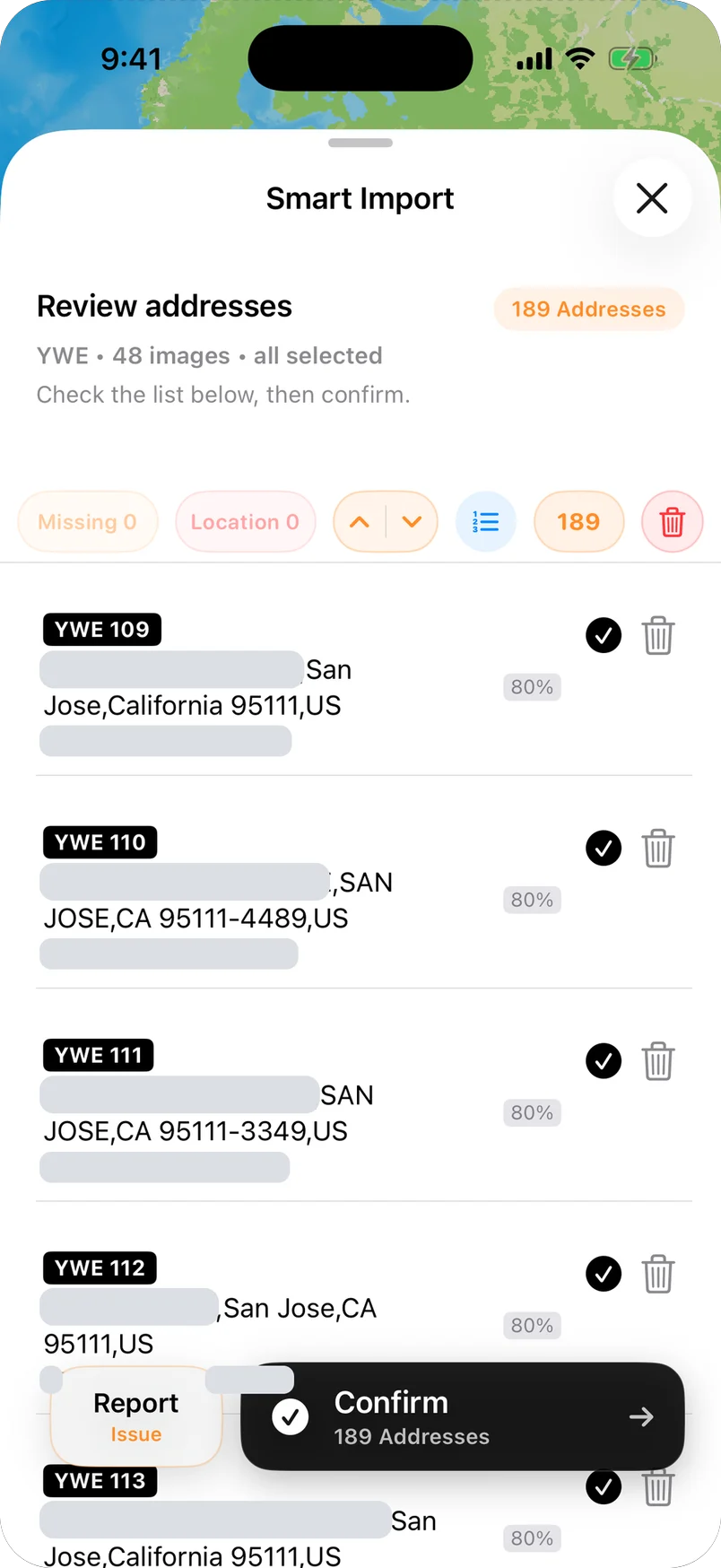
One row per stop with its stop number. Private address details are hidden in this image.
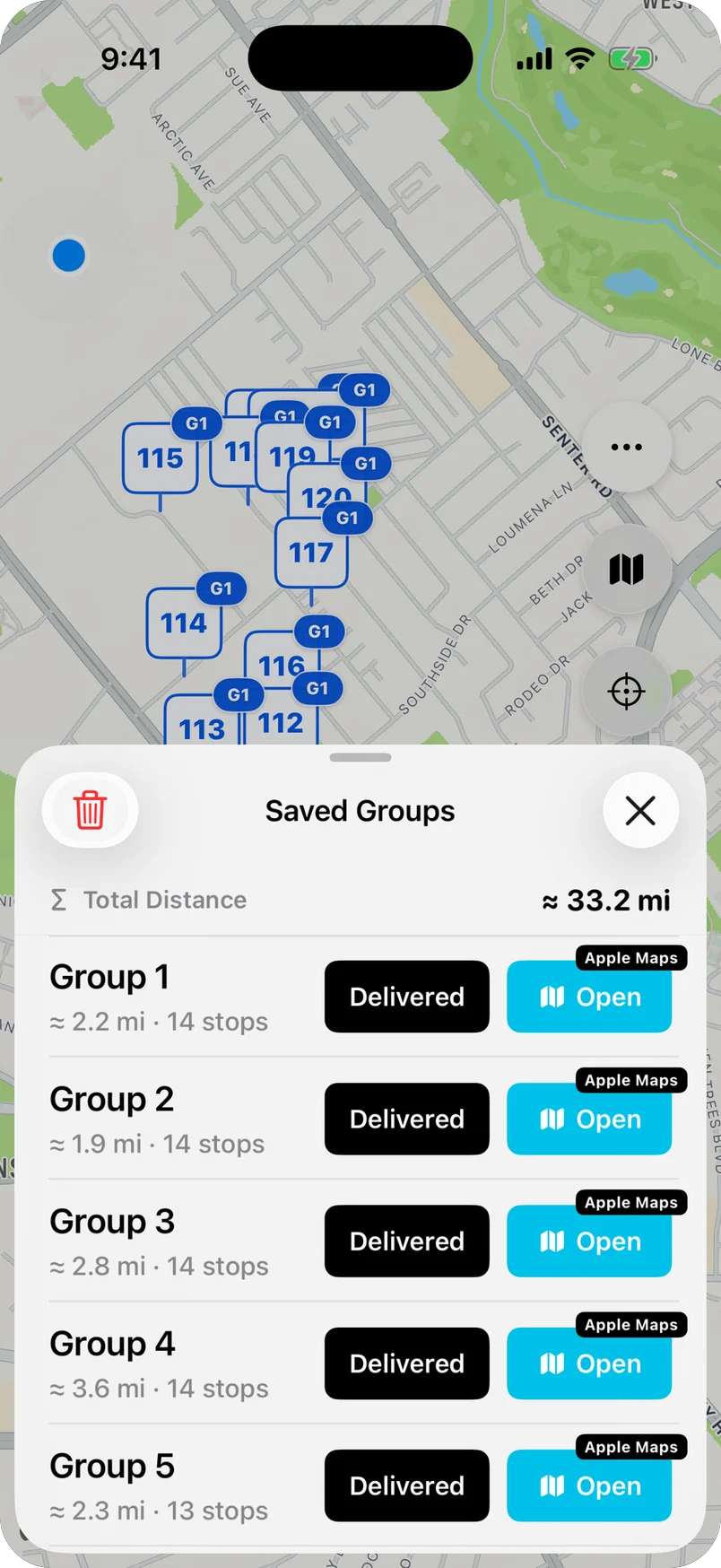
Saved groups, each with its own Apple Maps action.
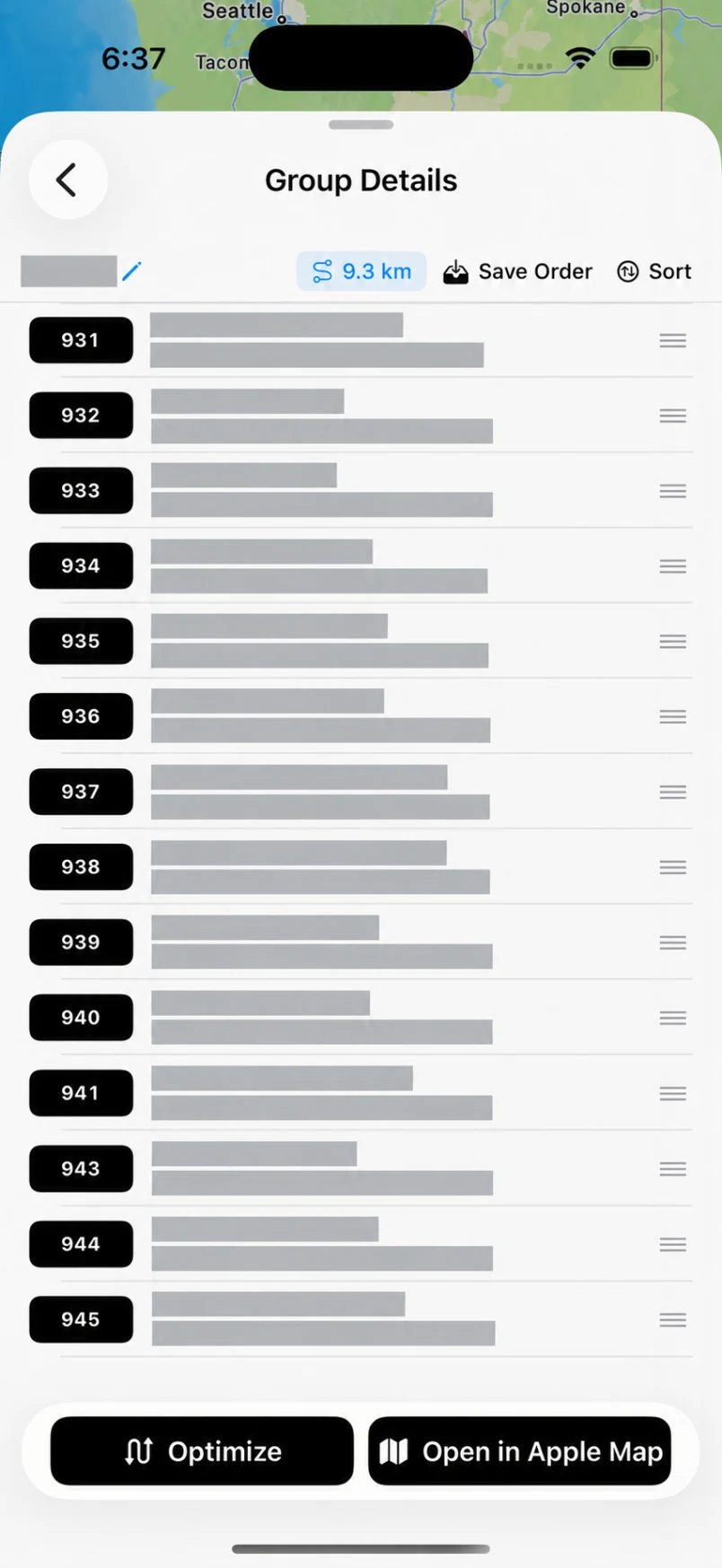
Group details with Optimize and Open in Apple Maps.
People searching for an iPhone route planner usually have one of three jobs in mind. The right tool depends on where your stops come from and whether their order is already decided.
| Your situation | What usually fits | What to check |
|---|---|---|
| A handful of errands | Apple Maps by itself. Apple's iPhone User Guide says you can add up to 14 stops to a driving route. | You add and drag each stop by hand. |
| A clean address list you can visit in any order | A route optimizer app, including NaviBatch's full-route optimization. | Import method, stop limits per plan, and which map app the route opens in. |
| A delivery list that lives in screenshots, a video or a PDF | NaviBatch: import, review, then group. | Review every recognized address before you drive. |
| Packages loaded by company stop number | NaviBatch: keep the overall sequence and optimize only a selected group. | Whether reordering would separate driving order from loading order. |
| A dispatcher managing several drivers | Fleet dispatch software. | NaviBatch is a driver app, not a dispatch dashboard. |
For a side-by-side look at other apps, see route planner apps for iPhone delivery drivers. For the built-in Apple Maps steps, see how to plan a multi-stop route in Apple Maps.
How a list was imported does not decide how it should be ordered. NaviBatch lets the driver choose.
NaviBatch does not promise the mathematically shortest route or a fixed time saving. See how selected-group optimization works.
Stop counts are easy to mix up, so compare the same kind of number.
On a 120-stop day, that means reviewing the list once, then opening one group after another instead of rebuilding a route in the map app each time. How the one-push Apple Maps handoff works.
Apple Maps handles the turn-by-turn directions. Since version 1.5.8, NaviBatch can keep the delivery list in step while you drive:
Each of these can be turned off in the Menu. Stops are marked only inside NaviBatch, not in any courier app.
A good iPhone route planner should do more than draw a line on a map. For delivery work, it should handle messy input, make corrections easy, keep the sequence visible, and connect smoothly with the navigation app you already use.
Yes. NaviBatch is an iPhone route planner for delivery drivers. You import and review the stop list in NaviBatch, then send one reviewed group of up to 14 planned stops to Apple Maps in one push. Apple Maps provides the turn-by-turn navigation.
Yes. NaviBatch uses a patent-pending Apple Maps handoff that sends up to 14 planned stops in one action. That is a per-handoff figure, not a limit on the whole route: a longer run stays in groups and you send the next group when you are ready.
Yes, with two scopes. A list you can visit in any order can use full-route optimization. When company stop numbers follow scan and loading order, you can keep the overall sequence and optimize only a selected group. NaviBatch does not promise the mathematically shortest route.
NaviBatch runs on iPhone with iOS 17 or later. It is a driver app, not a fleet dispatch dashboard.
From screenshots, long images, videos of a scrolling list, files including PDFs, pasted text or manual entry. You review the recognized addresses and map pins before routing, because recognition is not guaranteed to be complete or error-free.
NaviBatch is a free download. In the US, Pro was $9.99 per month or $59.99 per year when checked on September 28, 2026. Current features, regional prices and trial eligibility are shown in the app and on the Apple purchase sheet.
Yes. The current App Store version also offers a Google Maps handoff of up to 10 addresses per group. This page focuses on the Apple Maps workflow.
Yes. It is designed for delivery drivers, couriers and other multi-stop work where addresses arrive in batches. NaviBatch is independent and is not affiliated with Apple or any delivery platform.
No. NaviBatch prepares, reviews and groups the route. Apple Maps handles turn-by-turn navigation after the handoff.
NaviBatch is not limited to a set list of companies. You can import a stop list from any courier or last-mile company as screenshots, a screen recording, a file or pasted text. The source label is optional and typed by the driver, and Auto / Mixed works without one. NaviBatch is independent, has no courier integration, and recognized addresses still need review.
Download NaviBatch on iPhone and try a workflow built for real delivery lists, screenshots, videos, and Apple Maps handoff.
Download NaviBatch