Screenshot import
Use driver-provided screenshots or long images when the address and stop labels are visible on the phone.
When a driver provides GoFo-style screenshots or slow scroll videos, NaviBatch can import visible addresses and stop labels for review. The driver then chooses the route order, creates groups, and hands a reviewed group to Apple Maps. Other map-app handoffs are version-dependent. NaviBatch does not connect to a GoFo account or download orders.
A driver-provided GoFo-style list may show many delivery addresses alongside package or stop numbers that need to stay connected to parcels. Retyping those visible labels into a map app can break that flow and add setup work before the route starts.
NaviBatch gives drivers a practical path from visible screen content to route-ready address groups: import the rows the driver provides, review the recognized addresses and labels, choose the route order, and hand the reviewed group to Apple Maps for navigation.
Use driver-provided screenshots or long images when the address and stop labels are visible on the phone.
Use a driver-provided slow screen recording for longer lists that are easier to scroll than capture as screenshots.
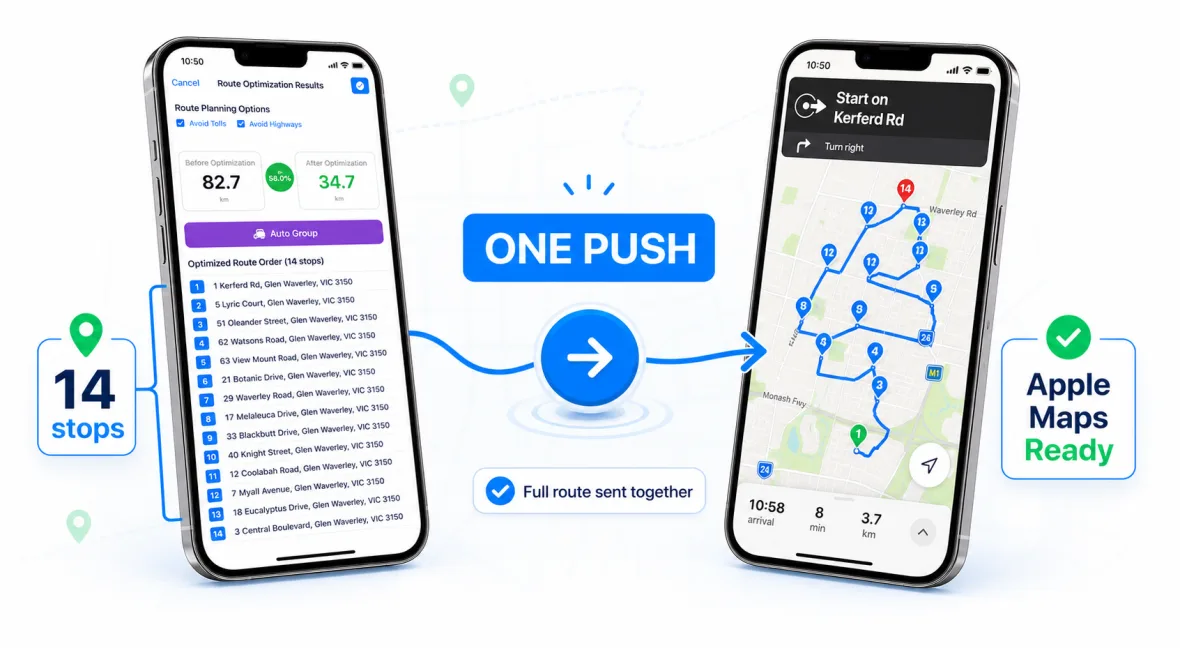
Send up to 14 planned addresses to Apple Maps in one push when the group is ready. Check the installed app for any additional, version-dependent map options.
The goal is not to skip checking. The goal is to reduce repeated typing while keeping enough control before the route reaches Apple Maps. Before handoff, drivers should confirm the address text, apartment or unit details, and delivery package numbers that matter for parcel lookup.
GoFo-style workflows often depend on matching packages to stop numbers. NaviBatch keeps those numbers close to the reviewed address list.
Apartment numbers, abbreviations, and cropped screenshots should be checked before any map handoff.
When stop numbers reflect scanning and loading order, keep that sequence in groups instead of globally rearranging every address.
GoFo-style routes can include many delivery addresses in a tight area. Route order still matters, but drivers can also lose time before driving by extracting addresses, checking unit details, grouping the run, and adding addresses into a navigation app one by one.
For a normal address list without a required sequence, drivers can optimize the full route. When visible stop labels reflect a company sequence used for scanning and loading, drivers can keep the overall order, divide it into groups, and optionally optimize only within the selected group. The reviewed group is then handed to Apple Maps as a separate step; other map-app handoffs are version-dependent.
NaviBatch is an independent route setup tool for delivery drivers. It does not sign in to, connect to, or download orders from a GoFo account. NaviBatch works only with address information and stop labels the driver provides through screenshots, long images, videos, files, pasted text, or manual entry. NaviBatch is not affiliated with, endorsed by, sponsored by, or officially integrated with GoFo, Apple, Google, or any delivery platform. Platform names are used only to describe driver workflows.
No. NaviBatch is an independent route setup app and is not affiliated with, endorsed by, sponsored by, or officially integrated with GoFo.
No. NaviBatch does not sign in to a GoFo account or download orders. It works only with address information and stop labels the driver provides through screenshots, long images, videos, files, pasted text, or manual entry.
NaviBatch can import visible addresses and package or stop numbers from user-provided screenshots, long images, and videos. It does not fetch hidden account or order data, and drivers should review the detected rows before routing.
For a normal address list without a required sequence, the driver can optimize the full route. When visible stop labels reflect a sequence used for scanning and loading, the driver can keep the overall order, divide it into groups, and optionally optimize only within a selected group.
After review, NaviBatch can send up to 14 planned delivery addresses to Apple Maps in one push. Other map-app handoffs are version-dependent and should be checked in the installed app. Larger GoFo-style lists should be handled as reviewed groups.
User-provided delivery screenshots can include cropped text, apartment details, duplicate rows, or OCR mistakes. Review-before-routing helps catch those issues before navigation starts.
Use NaviBatch to import, review, group, and hand off delivery addresses before driving.
Download NaviBatch